Revision Table for EB-WI-0100 "Customize the Visual Style of a Process Library"
| Rev | Description of Change |
| - | First formal release |
| A | Updated all screenshots |
| B | Section 1 re-written |
| C | Section 2 re-written |
| D | Section 3 re-written |
EB-WI-0100, Rev D "Customize the Visual Style of a Process Library"
- Section 1: Customize Global Branding for Your Organization or Project
- Step 1.1: Create a new CSS file
- Step 1.2: Custom "Fine Print" on Each Title Page
- Step 1.3: Logo
- Step 1.4: Adjust Header Widths
- Step 1.5: Custom Font and Font Sizes
- Step 1.6: Customize Colors
- Step 1.7: Use your web browser to help customize anything
- Section 2: Customize Classification Markings
- Step 2.1: Decide what makes sense for your library
- Step 2.2: Header and Footer
- Step 2.3: Portion marking for generated text
- Step 2.4: Classification Authority Block
- Section 3: Change the look of built-in templates
Personnel Performing this Process, by Named Role:
| Role in this Process | Name of Person | Initials | Contact Information |
This process has 5 stated objectives:
- Centralize the "fine print" for your organization's process library title pages, such that changing one file will update all title page across your organization's process library. (Step 1.2)
- Customize the logo in a library, sourced from a single file that can be replaced if the logo changes. (Step 1.3)
- Customize fonts in a process library to match your organization's style guide. (Step 1.5)
- Customize colors in a process library to match your organization's style guide. (Step 1.6)
- Customize global header and footer markings for a process library. (Step 2.2)
"Customize the Visual Style of a Process Library" applies to Populated Assets Folder to produce Modified Assets
 →
→
→
15 named resources are identified to perform this process:
Step 1.3
Your company or project logo, in a format typically found on web pages (e.g. PNG, JPG, GIF, SVG)
Your company or project logo, in a format typically found on web pages (e.g. PNG, JPG, GIF, SVG)
Step 1.5
Font file in a typical format (e.g. TTF)
Font file in a typical format (e.g. TTF)
Step 1.6
Color palette from your organization's styling preferences
Color palette from your organization's styling preferences
Step 3.1
assets/CleanRoom.css
assets/CleanRoom.css
Step 3.2
assets/COMSEC.css
assets/COMSEC.css
Step 3.3
6 similarly-named CSS files in the default assets folder: assets/Distribution[A-F].css
6 similarly-named CSS files in the default assets folder: assets/Distribution[A-F].css
Step 3.4
assets/ESD.css
assets/ESD.css
Step 3.5
assets/FOD.css
assets/FOD.css
Step 3.6
assets/HazOps.css
assets/HazOps.css
Step 3.7
assets/NoAI.css
assets/NoAI.css
Step 3.8
assets/NonConformances.css
assets/NonConformances.css
Step 3.9
assets/PowerON.css
assets/PowerON.css
Step 3.10
assets/RadioEmission.css
assets/RadioEmission.css
Step 3.11
assets/Roles.css
assets/Roles.css
Step 3.12
assets/Welding.css
assets/Welding.css
| Time | Step | Record | Brief Summary of Observation(s) that Deviated from Documented Expectations |
Step 1.1: Create a new CSS file
For this section, we'll use an example of "Tech Company"
| Action to perform | Expected | Result | Done | TPV |
| Either create a new text file, or copy an existing CSS file from the assets folder | New file, named appropriately, e.g. TechCompany.css | ▢ | N/A |
Step 1.2: Custom "Fine Print" on Each Title Page
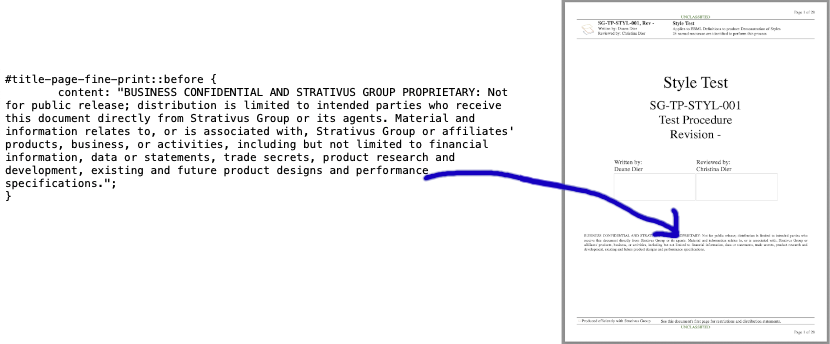
This CSS updates the text that appears on the title page of every process
On the title page of every process, in small text, is restrictive text that dictates distribution limitations for the document. Updating this in the central company brand CSS file will change the default for all processes that use this template. This "fine print" can also be overwritten with government-style distribution statements, a topic covered in a different section of this process.
This CSS updates the text that appears on the title page of every process
Using "Tech Company" as the placeholder name, here is some sample text:
"BUSINESS CONFIDENTIAL AND [TECH COMPANY] PROPRIETARY: Not for public release; distribution is limited to intended parties who receive this document directly from [Tech Company] or its agents. Material and information relates to, or is associated with, [Tech Company] or affiliates' products, business, or activities, including but not limited to financial information, data or statements, trade secrets, product research and development, existing and future product designs and performance specifications."
Centralize the "fine print" for your organization's process library title pages, such that changing one file will update all title page across your organization's process library.
Step 1.3: Logo
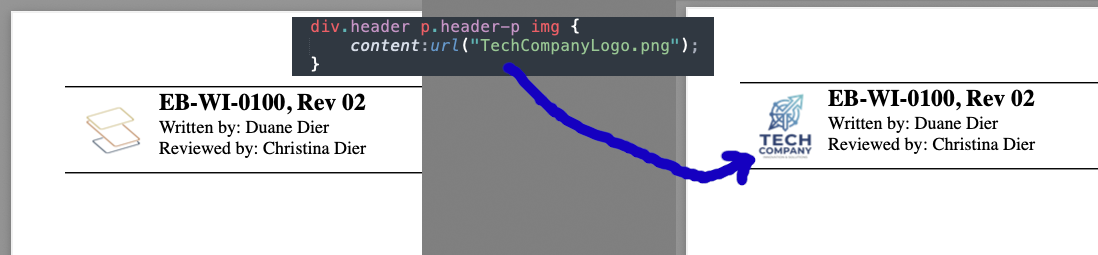
This CSS references a specific file used at the top of every page
1 named resources are identified to perform this step:
Your company or project logo, in a format typically found on web pages (e.g. PNG, JPG, GIF, SVG)
| Action to perform | Expected | Result | Done | TPV |
| Place your logo image file (PNG, JPG, GIF, SVG, etc.) into the "assets" folder | Image file added in one place | ▢ | N/A | |
| In your new CSS file: div.header p.header-p img { content:url("yourLogo.png"); } |
"yourLogo.png" changed to whatever the filename is for your logo | ▢ | N/A |
Put the logo file in the "assets" folder so every process can access it!
This CSS references a specific file used at the top of every page
Customize the logo in a library, sourced from a single file that can be replaced if the logo changes.
Step 1.4: Adjust Header Widths
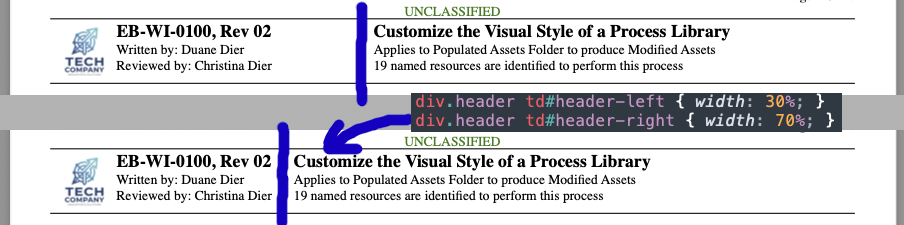
The default header bar has a split at 40%, making it a 40% left (including logo) and 60% right split. The example in this image changes that to 30/70 in TechCompany.css
When updating a logo, you should publish a process that references it to see if the size and shape of the image file is appropriate for your process documents. If something looks funny, you can adjust the width along the header allocated for the logo. The same tweaks can be made when changing fonts, font sizes, or if your document culture adopts naming conventions that exceed the expected line lengths in the default templage. Some teams like long document numbers and titles!
| Action to perform | Expected | Result | Done | TPV |
| In your new CSS file: div.header td#header-left { width: 30%; } div.header td#header-right { width: 70%; } |
Header division is now 30/70 (instead of the default 40/60) | ▢ | N/A |
The default header bar has a split at 40%, making it a 40% left (including logo) and 60% right split. The example in this image changes that to 30/70 in TechCompany.css
Step 1.5: Custom Font and Font Sizes
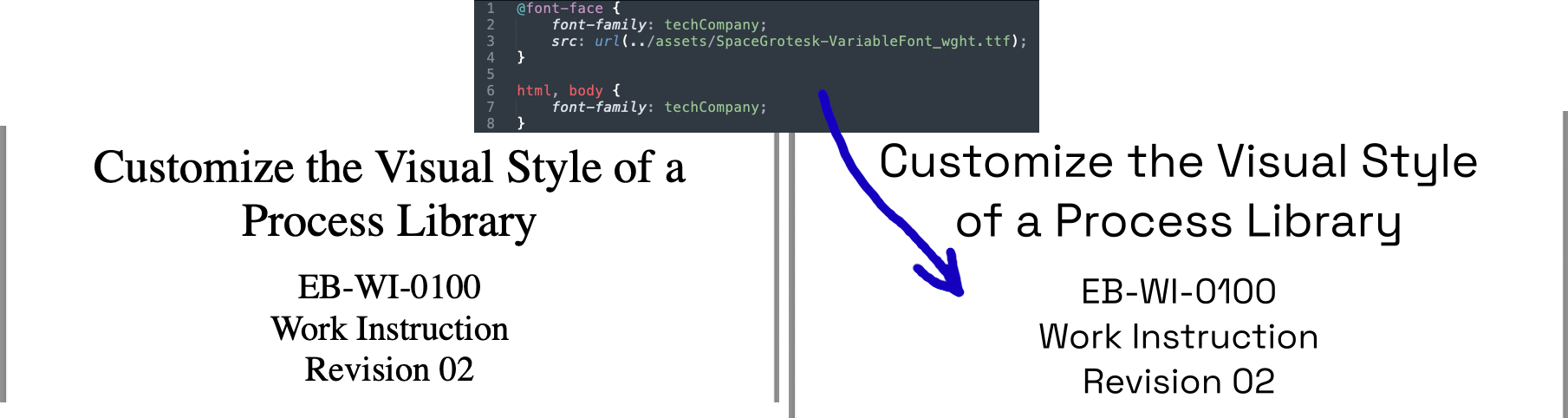
Custom fonts can exactly match your organization's style guide, especially when in tandom with specific colors (next section)
1 named resources are identified to perform this step:
Font file in a typical format (e.g. TTF)
With a few lines in your CSS file, you can reference a local font file and declare where it should be used in your processes.
| Action to perform | Expected | Result | Done | TPV |
| Place your font file (TTF, etc.) into the "assets" folder | Font file added in one place | ▢ | N/A | |
| Add a "@font-face" declaration block | ... | ▢ | N/A | |
| Add a custom "font-family" declaration in the @font-face block | ... | ▢ | N/A | |
| Add a "src" declaration in the @font-face block | ... | ▢ | N/A | |
| Add a declaration block for "html, body" to apply all parts of a process, or narrow to specific elements according to your organization's styling preferences | ... | ▢ | N/A | |
| Add a "font-family" declaration with the custom value you set in @font-face | ... | ▢ | N/A |
Custom fonts can exactly match your organization's style guide, especially when in tandom with specific colors (next section)
Any CSS element can be modified with CSS code, including the text sizes throughout the document. Surgical changes can be made to, say, tables, warnings, context, or anything else. The action below globally reduces the size of ALL text throughout every Tech Company process.
| Action to perform | Expected | Result | Done | TPV |
| In your new CSS file, if you already have a selector fo "html, body" then add: font-size: 0.85em; |
When rendered, text will be 15% smaller across the entire | ▢ | N/A |
Customize fonts in a process library to match your organization's style guide.
Step 1.6: Customize Colors

A single CSS selector that selects the various tables in every process
1 named resources are identified to perform this step:
Color palette from your organization's styling preferences
Color values can be supplied any way way that CSS generally handles colors, like hex codes (e.g. #FFFFFF), RGB/A sets, or even just names of colors (e.g. "white").
While you can change the color of any element, the action table below gives a common set of colors to change.
| Action to perform | Expected | Result | Done | TPV |
| html,body { color: [value] } | Change all text in the entire process to color [value] | ▢ | N/A | |
| .section-title { color: [value] } | Change just the section titles text to color [value] | ▢ | N/A |
A single CSS selector that selects the various tables in every process
| Table element type | Element |
|---|---|
| Revision table header row | #revision-page thead |
| Requirement Summary table header row | #requirements-page thead |
| Action sequence table header rows | div.action-sequence thead |
| "Roles" table (if Roles.css template used) | #roles thead |
| "Nonconformances" table (if Nonconformances.css template used) | #non-conformances table thead |
| Generic CSV table headers | .csv-table-container thead |
| Description | Element to select |
|---|---|
| Section Title (default is grey) | .section-title |
Customize colors in a process library to match your organization's style guide.
Step 1.7: Use your web browser to help customize anything
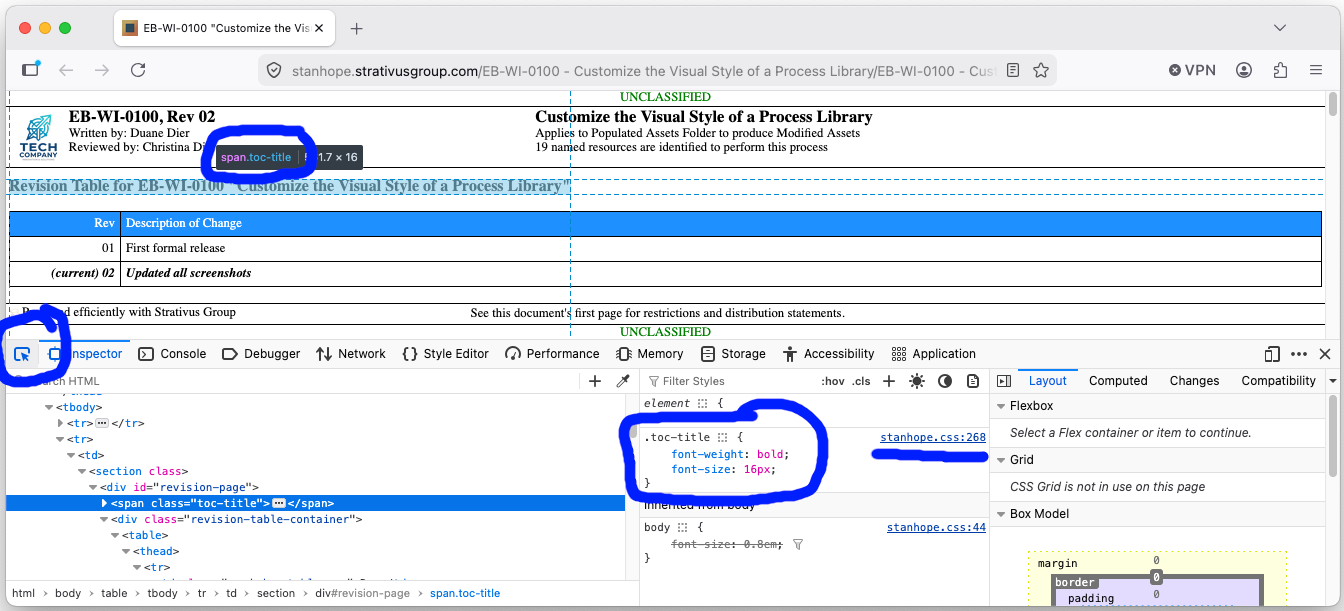
Web browser built-in inspection/development tools all pretty much look like this. Firefox on MacOS shown
| Action to perform | Expected | Result | Done | TPV |
| Open the HTML version of any process in your library | Opens in web browser | ▢ | N/A | |
| Open your web browser's inspection/development tool pane | Lower half of the window shows tool buttons and code | ▢ | N/A | |
| Use the selector button and click on the part of the document you want to change, noting the CSS class or ID | e.g. div.class, #id, p.class, etc. | ▢ | N/A |
Chrome and Chromium: Inspect mode: Quickly analyze element properties, Safari, and MacOS stuff: Taming CSS Variables with Web Inspector, Firefox: Open the Inspector
Web browser built-in inspection/development tools all pretty much look like this. Firefox on MacOS shown
Step 2.1: Decide what makes sense for your library
If your process library requires multiple levels of sensitivity for its processes, it would make sense to have a default/base classification level (lowest, most permissive) included in your organization-level CSS file. More restrictive levels would then have their own CSS files. For instance,
| File you could create | Application you might consider for a file named such |
|---|---|
| ITAR.css | could be applied to Unclassified processes that include export-controlled tech data |
| Secret.css | could be applied to processes that include information with maximum classification of Collateral Secret |
| Proprietary.css | could be applied to processes that include company proprietary information |
| CUI.css | could globally mark documents CUI |
| CUI-PROPIN.css | could globally mark documents CUI // SP-PROPIN |
For each of these separate CSS files, the steps in this section would apply. Processes can individually select which (or none) of the classification CSS files apply at a process-by-process level. Since the instructions in this section overwrite properties of the same elements, you'll want to think of these files as exclusive of one another. So a generic CUI marking could be in CUI.css, but a separate CUI-PROPIN.css would be needed to mark documents globally with CUI // PROPIN as suggested in the table above.
Step 2.2: Header and Footer
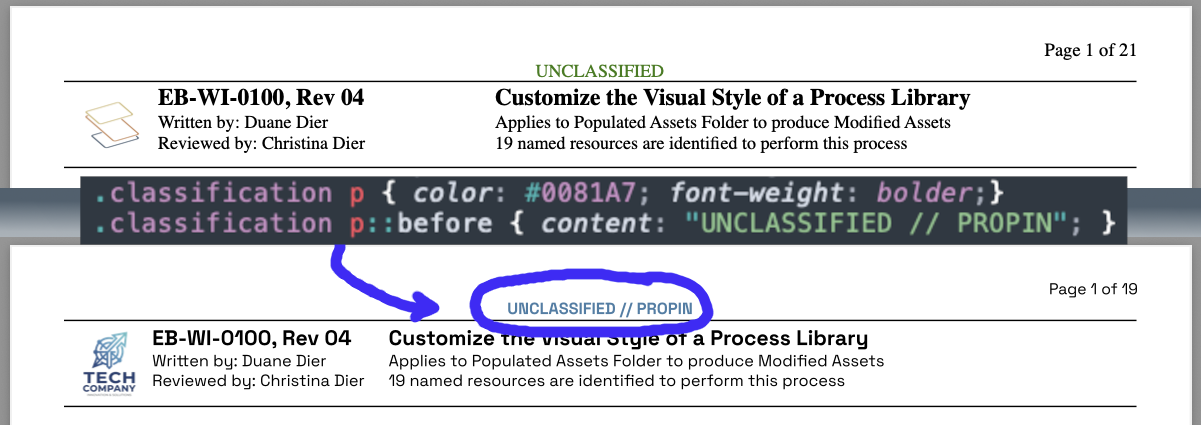
This CSS snippet changes the header & footer classification markings from the default (top) to the updated marking (bottom)
In the default asset pack provided at stanhope.strativusgroup.com, there's a "Secret.css" file to use as an example.
| Action to perform | Expected | Result | Done | TPV |
| Duplicate the Secret.css file in your assets folder | New file exists | ▢ | N/A | |
| Rename the new file appropriately | Uniquely named CSS file in assets folder | ▢ | N/A | |
| Change the "before" text for the classification CSS element | Text matches what you want in the header and footer of every page | ▢ | N/A | |
| Change the "color" of the classification CSS element | Color matches security guidance (or organization branding for proprietary) | ▢ | N/A | |
| Save the CSS file | File savedd | ▢ | N/A | |
| Add a "Template" reference to this new CSS file in every EBML process for which it should apply | Processed documents look the way you want them to | ▢ | N/A |
If you don't reference the new CSS file in your EBML ("Template | NewFile.css"), the formatting won't be applied!
This CSS snippet changes the header & footer classification markings from the default (top) to the updated marking (bottom)
Customize global header and footer markings for a process library.
Step 2.3: Portion marking for generated text
Stanhope itself and all included assets from stanhope.strativusgroup.com are Unclassified. Therefore, everything that stanhope generates automatically can be portion marked (U) automatically as well.
It's up to document authors to portion mark their own Section, Step, Context, Action, Warning, etc. lines as they go according to your requirements.
For example, EBML for manually portion marked lines could look like this:
Section | (U) Section Title
Step | (U) Step Name
Warning | (U) Heed this warning!
Action | (U) Thing to do | (U) Expected Outcome | TPV
Step 2.4: Classification Authority Block
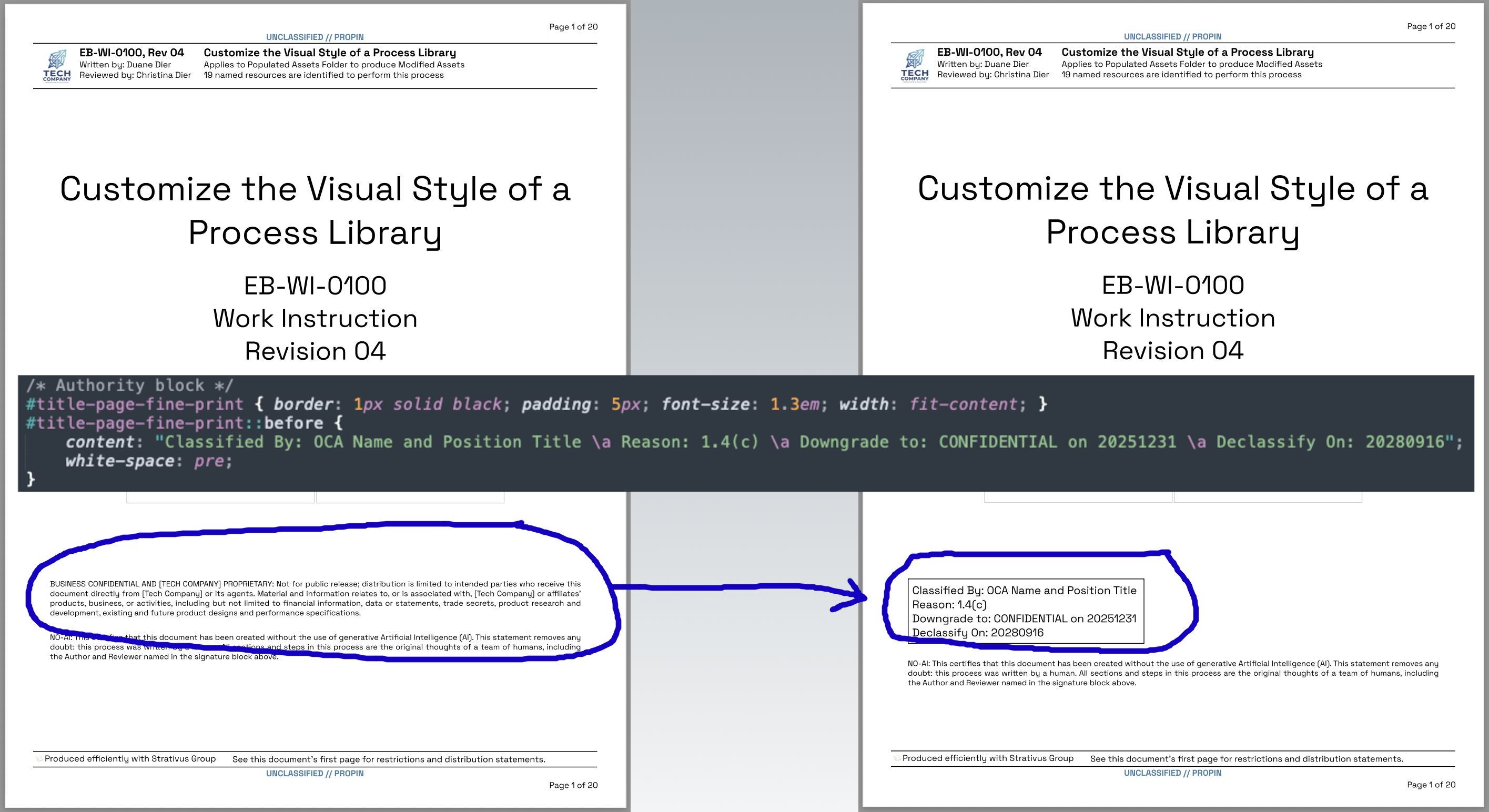
Lines in your classification templates can set the OCA's cover page block
The "fine print" text on the title page can be replaced with a Classification Authority Block with CSS.
Lines in your classification templates can set the OCA's cover page block
| Parameter | Value | Explanation |
|---|---|---|
| border | 1px solid black | Classification Authority Blocks are often styled this way |
| padding | 5px | Put some space inside the border |
| font-size | 1.3em | Relative adjustment to the "fine-print" default size |
| width | fit-content | "Shrink Wrap" the box so it doesn't span the entire width of the page |
| Parameter | Value | Explanation |
|---|---|---|
| content | "Classified By: [OCA Name and Position Title] \a Reason: 1.4(c) \a Downgrade to: [Classification] on [Datenum] \a Declassify On: [Datenum]" | Standard text |
| white-space | pre | This forces the "\a" in the content to be line breaks |
Step 3.1: CleanRoom.css

The new default styling (Left), and the old styling bundled with older versions of stanhope (Right)
1 named resources are identified to perform this step:
assets/CleanRoom.css
| Action to perform | Expected | Result | Done | TPV |
| Open the "CleanRoom.css" file in the library's "assets" folder | CSS Code, and the bottom half is commented-out CSS code | ▢ | N/A | |
| Using the tables below as guidance, edit the CSS as needed | File edited in place | ▢ | N/A | |
| Open the HTML version of any process that references this template | Opens in web browser | ▢ | N/A | |
| Refresh as you save the CSS file to see the changes as you go | Clean Room notification looks the way you want it to | ▢ | N/A |
The new default styling (Left), and the old styling bundled with older versions of stanhope (Right)
| Parameter | Example Value | Explanation |
|---|---|---|
| display | block | It will span the full width |
| margin | 15px | Puts some space all the way around the outside |
| padding | 15px | Puts some space insisde |
| border | 0 [or like 20px...] | Use nonzero value for the old-school barber pole look |
| border-image | [Complex CSS...] | If you want the old-school look with the barber pole striping |
| break-inside | avoid | Try not to hyphenate split-words when wrapping lines |
| clear | both | If the image is used |
| background-color | [Any CSS Color] | The color of the entire thing |
| Parameter | Example Value | Explanation |
|---|---|---|
| color | #000000 | Color of the text |
| font-size | 1.25em | Relative to normal text (e.g. "Context") in this example 25% larger than that |
| font-weight | bolder | Bold text |
| Parameter | Example Value | Explanation |
|---|---|---|
| content | "This procedure is executed on flight hardware in a cleanroom environment. All factory cleanroom policies apply including 'top-down' application of head and body garments to maintain the certified cleanliness levels of the work area(s). All personnel intending to touch flight hardware must wear gloves." | Whatever you want the Clean Room text to say. Consider specifically referencing your organization's policies or specific standards for Clean Room environment(s). |
| Parameter | Example Value | Explanation |
|---|---|---|
| float | left | An icon image is on the left-hand side of the Clean Room text box |
| height | 75px | Sizes the image |
| content | url("Cleanroom.png") | Image file to use (if using an image!) that can be found in the "assets" folder |
| padding | 0px 10px 0px 0px | Put some space on the right-hand side of the image to separate from the text inside the Clean Room box. |
Step 3.2: COMSEC.css

The new default styling (Left), and the old styling bundled with older versions of stanhope (Right)
1 named resources are identified to perform this step:
assets/COMSEC.css
The new default styling (Left), and the old styling bundled with older versions of stanhope (Right)
Step 3.3: Distribution[A-F].css
This CSS updates the text that appears on the title page of every process
1 named resources are identified to perform this step:
6 similarly-named CSS files in the default assets folder: assets/Distribution[A-F].css
These individual CSS files for distribution statements are mutually exclusive: they edit the same element on the title page of the process to change the "fine print." Editing these files changes what appears if these are called as templates.
This CSS updates the text that appears on the title page of every process
The default asset pack CSS files include word-for-word the DoD wording from DoDI 5230.24
The DistributionF.css file also includes changing the text color to red, as it is the most restrictive of these default Unclassified distribution statements.
| Dist. | Statement |
|---|---|
| A | Approved for public release: distribution is unlimited. |
| B | Distribution authorized to U.S. Government agencies [category] [date of determination]. Other requests for this document must be referred to [controlling DoD office]. |
| C | Distribution authorized to U.S. Government agencies and their contractors [category] [date of determination]. Other requests for this document must be referred to [controlling DoD office]. |
| D | Distribution authorized to the Department of Defense and U.S. DoD contractors only [category] [date of determination]. Other requests for this document must be referred to [controlling DoD office]. |
| E | Distribution authorized to DoD Components only [category] [date of determination]. Other requests for this document must be referred to [controlling DoD office]. |
| F | Further distribution only as directed by [controlling DoD office] [date of determination] or higher DoD authority. |
| Action to perform | Expected | Result | Done | TPV |
| Change [category] placeholders in all "DistributionX.css" template files | All placeholders filled | ▢ | N/A | |
| Change [date of determination] placeholders in all "DistributionX.css" template files | All placeholders filled | ▢ | N/A | |
| Change [controlling DoD office] placeholders in all "DistributionX.css" template files | All placeholders filled | ▢ | N/A |
Step 3.4: ESD.css

The new default styling (Left), and the old styling bundled with older versions of stanhope (Right)
1 named resources are identified to perform this step:
assets/ESD.css
The new default styling (Left), and the old styling bundled with older versions of stanhope (Right)
Step 3.5: FOD.css

The new default styling (Left), and the old styling bundled with older versions of stanhope (Right)
1 named resources are identified to perform this step:
assets/FOD.css
The new default styling (Left), and the old styling bundled with older versions of stanhope (Right)
Step 3.6: HazOps.css

The new default styling (Left), and the old styling bundled with older versions of stanhope (Right)
1 named resources are identified to perform this step:
assets/HazOps.css
The new default styling (Left), and the old styling bundled with older versions of stanhope (Right)
Step 3.8: NonConformances.css
1 named resources are identified to perform this step:
assets/NonConformances.css
Step 3.9: PowerON.css

The new default styling (Left), and the old styling bundled with older versions of stanhope (Right)
1 named resources are identified to perform this step:
assets/PowerON.css
The new default styling (Left), and the old styling bundled with older versions of stanhope (Right)

